 DuoCam
Filming Interviews with Dual Cameras
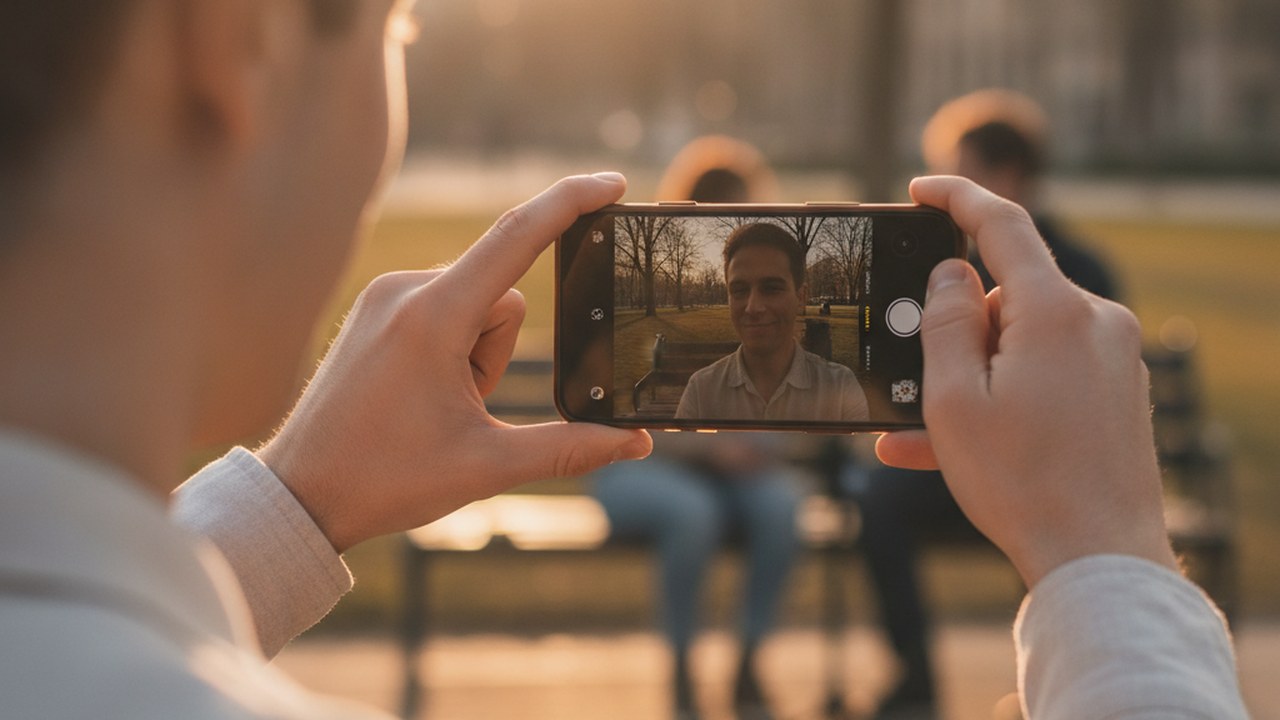
To film interviews with front and back cameras simultaneously, you need a dual-camera recording application that leverages your smartphone's hardware capabilities. This approach allows you to capture both the interviewer and interviewee reactions in a single take, streamlining your workflow and enriching your final video content. By strategically framing your shots and utilizing the right tools, you can produce dynamic, engaging interviews directly from your phone.
Why Use Dual Cameras for Interviews?
Using dual cameras for interviews offers a unique advantage by capturing multiple perspectives in real-time, eliminating the need for a second camera setup or complex synchronization during editing. This method ensures that you don't miss any crucial reactions, whether from the person being interviewed or the interviewer, adding depth and authenticity to your storytelling. It's particularly useful for documentary-style content, vlogs, or testimonials where showing both sides of a conversation significantly enhances viewer engagement and provides a more comprehensive narrative. This simultaneous capture capability can dramatically streamline your production process, allowing for more spontaneous and dynamic recording sessions without compromising on visual information.
How Do You Set Up for a Dual-Camera Interview?
Setting up for a dual-camera interview involves careful placement and consideration of your environment to maximize both perspectives effectively. Position your smartphone to capture the interviewee clearly with one camera, while ensuring the other camera has a good, stable view of the interviewer, the audience, or the surrounding context. Experiment with different angles, distances, and lighting conditions to achieve balanced exposure and composition for both shots. It's crucial to remember that device support for simultaneous capture varies significantly by hardware, with some phones supporting it only at lower resolutions, and some not at all. Always test your setup beforehand to confirm your device's capabilities and ensure optimal recording quality.
What Are the Best Practices for Dual-Camera Audio?
For dual-camera interviews, recording clear and intelligible audio is paramount, as it will be captured as a single combined track across both video feeds. To achieve the best sound quality, strongly consider using an external microphone, such as a lavalier or a directional mic, positioning it as close as possible to the primary speaker to minimize background noise and echoes. If relying on your phone's built-in microphone, ensure the recording environment is as quiet as possible and free from any distracting ambient sounds. While DuoCam records a single, integrated audio track, you have the option to mute the entire exported video during editing if background noise becomes an issue, but it's important to note that individual sections cannot be muted independently.
How Can DuoCam Enhance Your Interview Footage?
DuoCam is specifically designed to simplify the process of capturing simultaneous front and back camera footage, providing flexible layout options and robust on-device editing capabilities to refine your interview clips directly on your smartphone. With DuoCam, you can choose between various dynamic layouts such as a draggable picture-in-picture overlay, a clear side-by-side display, or a balanced top-and-bottom arrangement, allowing you to best showcase both perspectives. For supported devices, the app even offers on-device background removal, enabling you to isolate subjects for a cleaner, more professional aesthetic without requiring complex external software or green screens. This empowers you to focus on the conversation and the content, knowing the app handles the intricate multi-camera recording and initial enhancements seamlessly. Explore its full range of features and possibilities at DuoCam.
What Post-Production Tips Are There for Dual-Camera Clips?
Even with the advantage of dual-camera recording, some focused post-production can significantly improve the final quality and impact of your interview. DuoCam offers a suite of intuitive on-device editing tools that let you refine your footage without ever altering the original source file on your device. You can easily trim the ends of your clip to remove unnecessary lead-ins, awkward pauses, or outros, creating a more polished final product. For longer interviews, you can split a continuous clip into multiple segments, and if there are any unwanted sections, you can precisely delete specific segments. It's important to remember that these segments always maintain their original time order and cannot be rearranged. Additionally, you have the option to apply a center crop to your video for precise framing, and for audio adjustments, you can mute the entire exported video if background noise or other audio issues are present across the whole recording.
Concrete Tips for Successful Dual-Camera Interviews
- Plan Your Shots: Before recording, visualize how both camera feeds will complement each other. Consider what each camera needs to capture.
- Test Your Device: Verify your phone's capability for simultaneous recording and at what resolutions. Not all devices support it equally.
- Prioritize Audio: Good audio is crucial. Use an external mic if possible, or ensure a quiet recording environment.
- Mind the Layout: Think about which DuoCam layout (PiP, side-by-side, top-and-bottom) best suits your interview style and content.
- Utilize On-Device Editing: Make quick adjustments like trimming or splitting clips directly on your phone, keeping your workflow efficient.
- Check Your Backgrounds: If using background removal, ensure your environment is suitable for the best results on supported devices.
- Review Before Export: Watch your edited video in its entirety to catch any issues before sharing.
By leveraging the power of simultaneous front and back camera recording, you can transform how you conduct and present interviews. Tools like DuoCam offer a straightforward path to creating dynamic, multi-perspective content directly from your phone, empowering storytellers and content creators to produce engaging narratives with ease.
FAQ
Can I record separate audio tracks for the front and back cameras? No, DuoCam records audio as a single combined track for the entire duration of your dual-camera video, integrating sound from both perspectives into one cohesive stream.
Is DuoCam available for download now? DuoCam is not yet released, but you can visit the official site at https://duocam.zyntec.app for updates, feature details, and information on its upcoming availability.
Can I rearrange the video segments after splitting a clip in DuoCam? No, while you can split a clip into segments and delete unwanted sections, the remaining segments always stay in their original time order and cannot be rearranged or reordered within the app.