 DuoCam
Vlog with One Phone: Capture Both Sides
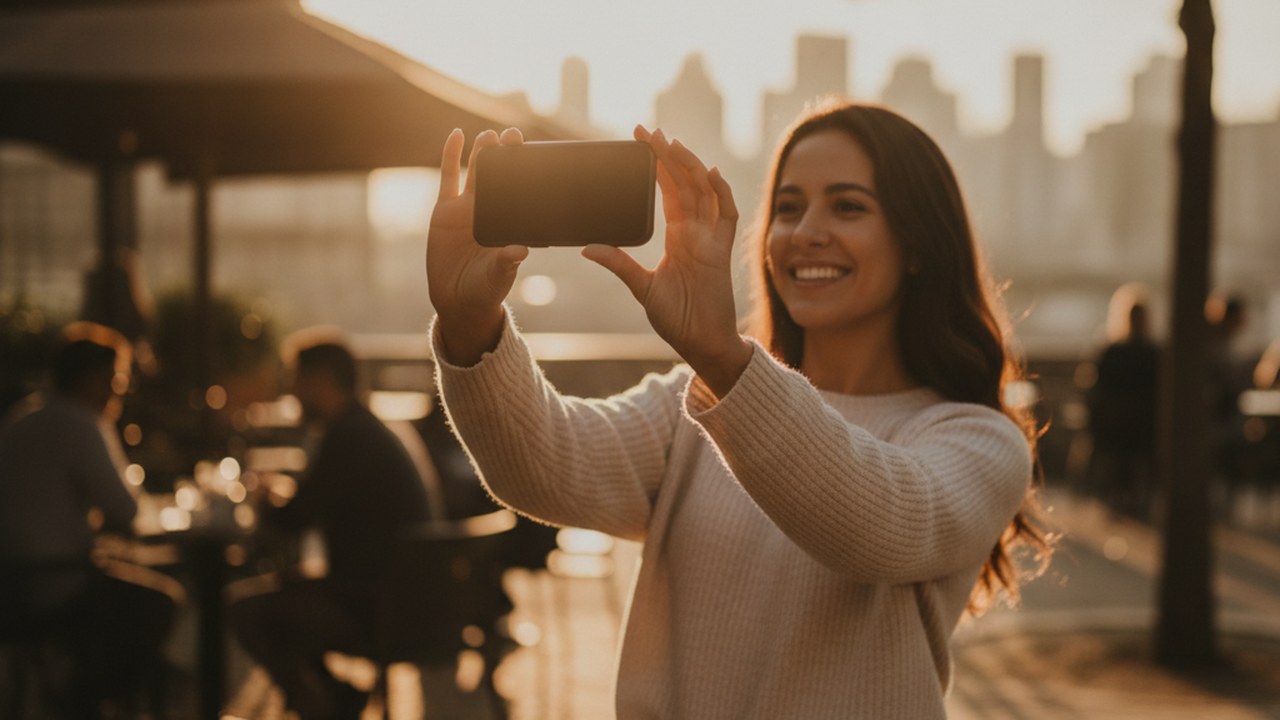
Vlogging with a single phone to capture both your reaction and the scene simultaneously is now a reality, enabling more immersive and engaging storytelling for content creators. Dedicated dual-camera applications make it possible to record from your device's front and back cameras at the same time, streamlining the content creation process without needing multiple devices or complex post-production work.
How can I capture both myself and the scene at once?
Directly capturing yourself and the scene together is possible through specialized dual-camera apps like DuoCam, which leverage your phone's hardware to record from both front and back lenses simultaneously. This innovative approach eliminates the need for complex multi-camera setups or tedious post-production syncing, allowing you to tell a complete story from a single perspective. While the capability for simultaneous capture varies by smartphone hardware—some phones may only support it at lower resolutions, and some older devices might not support it at all—many modern devices are capable of this dual-recording functionality. DuoCam is designed to work within these device limitations, providing the best possible dual-camera experience tailored to your specific phone's capabilities.
What creative layouts can I use for dual-camera video?
For dynamic storytelling, dual-camera apps offer various layouts to display both video feeds, allowing you to choose the best presentation for your content and engage your audience effectively. DuoCam provides flexible options such as a draggable picture-in-picture overlay, where one view floats interactively over the other, giving you control over its size and position. Alternatively, you can opt for fixed side-by-side or top-and-bottom arrangements for a clean, split-screen effect. On supported devices, you can also utilize on-device background removal for the front camera feed, helping to further integrate your presence into the scene without distracting elements and maintaining a professional look.
How can I edit dual-camera footage on my phone?
Editing dual-camera footage directly on your phone simplifies the workflow, offering essential tools to refine your video without the need for transferring files to a computer or using desktop software. With DuoCam, on-device editing capabilities are straightforward and efficient. You can easily trim the ends of your clips to remove unwanted footage, split a longer recording into multiple segments for better pacing, and delete any segments you don't need. It's important to note that segments always stay in their original time order and cannot be rearranged. Additionally, you can apply a center crop to your video for a more focused view and mute the audio for the entire exported video, ensuring your final output is polished and ready for sharing. A key benefit is that these edits never alter your original recorded files, preserving your raw footage intact for future use if desired.
What are some practical tips for effective dual-camera vlogging?
To make the most of your dual-camera vlogging and create compelling content, consider these practical tips for enhancing your recordings and storytelling:
- Plan your shot: Before hitting record, think about what both cameras will capture. Ensure your reactions (front camera) and the environment or subject (back camera) complement each other to tell a cohesive story.
- Optimize lighting: Position yourself and your main subject with good lighting for both cameras. Avoid harsh shadows or situations where one camera is significantly overexposed or underexposed compared to the other.
- Mind your audio: Since audio is recorded as a single combined track from both microphones, speak clearly and minimize distracting background noise. If ambient sound is crucial, consider using an external microphone for better quality, even if it's a simple wired lavalier.
- Experiment with layouts: Utilize DuoCam's draggable picture-in-picture, side-by-side, or top-and-bottom layouts to find the most engaging way to present your dual perspective. Don't be afraid to try different styles for different segments of your vlog.
- Keep it concise: Use the in-app editing features to trim unnecessary parts and keep your video focused and impactful. Remember, you can split clips and delete segments to refine your narrative, but clip segments cannot be reordered.
- Protect your privacy: Leverage apps like DuoCam that are offline-first and don't require an account. This ensures your media stays securely on your phone, and analytics are off by default, giving you peace of mind.
What are the privacy and convenience aspects of using a dual-camera app?
Choosing a dual-camera app that prioritizes user privacy and convenience can significantly enhance your vlogging experience, making content creation worry-free. Apps like DuoCam are designed with an offline-first approach, meaning your recorded media never automatically leaves your phone, giving you complete control over your content and where it resides. Furthermore, no account is required to use the app, eliminating another barrier to entry and protecting your personal information. Analytics are also off by default, ensuring your usage patterns remain private. This strong focus on privacy, combined with simple on-device editing and no mandatory internet connection for core functionality, makes dual-camera vlogging accessible and secure for everyone. While a free tier offers basic functionality with certain limits, users can unlock all advanced features and remove any restrictions through a DuoCam Pro annual or lifetime purchase, providing flexibility for different vlogging needs and budgets. For more insights on dual-camera technology and its applications, visit our dual camera guide.
FAQ
Can I use DuoCam on any smartphone to record with both cameras? The ability to record with both front and back cameras simultaneously varies by smartphone hardware. While many modern phones support this, some may only do so at lower resolutions, and some older devices might not support it at all. DuoCam is designed to adapt to your device's capabilities.
Does DuoCam require an internet connection or an account to use? No, DuoCam is designed with an offline-first approach, meaning your media never automatically leaves your phone, and no internet connection is required for core recording and editing. Additionally, no account is required to use the app, and analytics are off by default, ensuring your privacy.
What editing features are included in DuoCam? DuoCam provides on-device editing capabilities including trimming the ends of clips, splitting a clip into segments, deleting segments (segments cannot be rearranged), applying a center crop, and muting the audio for the entire exported video. These edits never modify your original files.